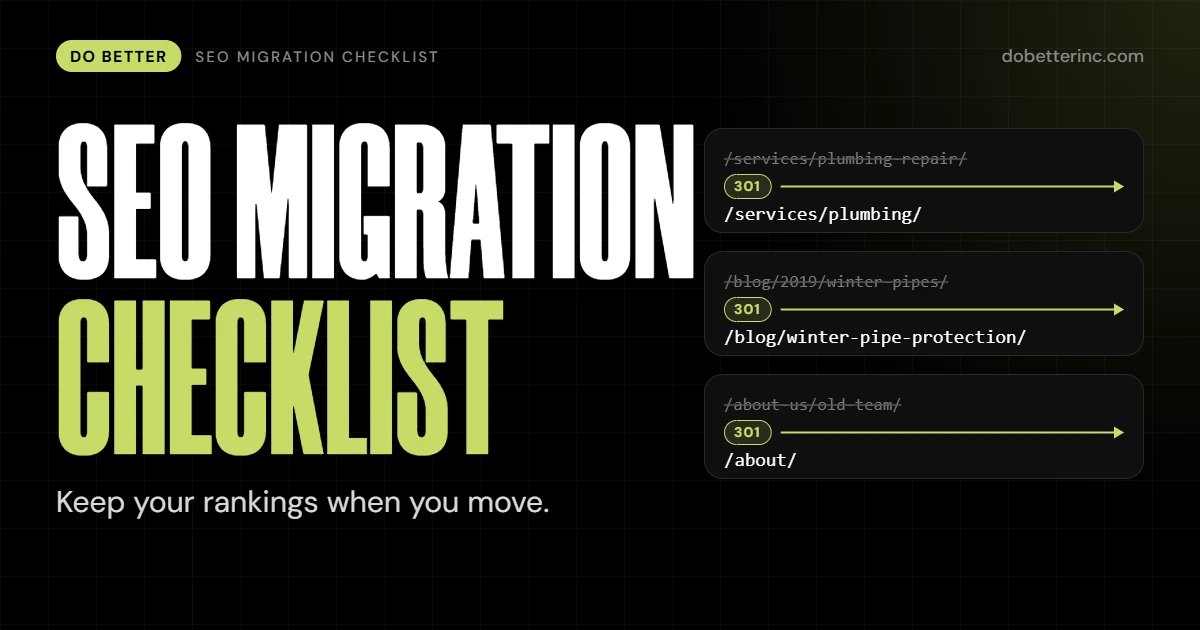
An SEO migration is any website change that alters your URLs, domain, platform or structure, which forces Google to re-learn your site. You keep your rankings by mapping every old URL to its closest new equivalent with a permanent redirect, carrying your content and on-page signals across intact, and watching the move closely for weeks after launch. This SEO migration checklist walks through that process in the order we run it, from the first crawl to the 90-day check.
It is written for business owners planning a redesign or a website migration to a new platform, and for marketers or developers who have been handed the job. If you only need the short version, the launch-day table in Phase 3 is the part to print.
What an SEO migration is
Search engines rank URLs, not websites. When a URL changes, Google does not automatically know the new page is the same page. A migration is the work of telling it so, and making sure nothing useful gets lost on the way.
Most migrations fall into one of these types, and many projects are a mix of several.
| Type | What changes | Main risk |
|---|---|---|
| Domain change | Old domain to a new one (rebrand, merger) | Every URL changes at once, backlinks point at the old domain |
| URL restructure | Paths change on the same domain | Redirects missed or mapped to the wrong pages |
| Redesign | Layout, templates, navigation, often content | Titles, headings, internal links and copy quietly disappear |
| Platform change | WordPress, Shopify, WooCommerce or another CMS swap | New platform’s URL patterns differ from the old one |
| HTTP to HTTPS | Protocol changes | Mixed content, missing redirects, stale canonicals |
| Hosting change | Server or host moves, URLs stay the same | Downtime, slow responses, wrong server settings |
One piece of advice from Google that people skip: change one thing at a time. Google’s own site move guidance suggests changing the domain, then the CMS, then the layout, as separate steps rather than all in one launch (Google Search Central). That is not always possible when a client needs a new brand, a new site and a new domain by the same date. When it is possible, it makes problems much easier to trace.
Why migrations lose traffic
Rankings do not vanish because Google punishes you for moving. They vanish because something that was doing work stops doing it. The usual culprits are boring:
- Redirects that are missing or point to the wrong page. The old page that ranked now returns a 404, or lands on the home page, which tells Google the content is gone.
- Content that did not make the trip. Say a redesign trims a service page from 900 words to 150 because it “looks cleaner.” The ranking tends to go with the words.
- A noindex tag left over from staging. The new site launches telling Google to ignore it.
- Internal links and canonicals still pointing at old URLs. Google gets mixed signals about which version is the real one.
- Backlinks pointing at URLs that now redirect poorly or not at all.
None of these are mysterious, and all of them are preventable with a checklist. If you are already seeing a drop and are not sure why, our guide on what to do when your website is not ranking on Google covers the diagnostic side.
How long an SEO migration takes
There are two clocks. One is your project: planning, building, testing and launching. That depends entirely on the size and complexity of the site, and it is the part you control.
The other is Google’s. For small to medium sites, Google says most pages typically take a few weeks to move, and larger sites take longer. The speed depends on how many URLs you have and how well your server responds. Google also says to expect rankings and visibility to fluctuate during the move before they settle (Google Search Central).
What stretches a project out, roughly in order of how often it happens:
- A large number of URLs that need individual redirect decisions.
- Content that is being rewritten at the same time as the move.
- A platform change where the old and new URL patterns do not line up.
- Approvals. Waiting a week for someone to sign off on page titles is a real cost.
- A domain change, because of the backlink cleanup and Search Console work that follows.
Plan the launch for a low-traffic period, and do not schedule it for the Friday before a holiday weekend. If something breaks, you want people at their desks.
What an SEO migration costs
We will not quote a number in a blog post, because the honest range is wide. The same service can be a few days of careful work for a 20-page local business site or a multi-month project for a store with thousands of products. The price moves with:
- Number of URLs and how many need manual mapping
- Whether URLs change at all, or only the design does
- Platform changes and any data moving between systems
- How much content is being rewritten or consolidated
- How much QA and post-launch monitoring you want included
- Whether the people building the new site and the people handling SEO are the same team
The cheapest version of this work is the one where SEO is in the project from day one. The expensive version is the one where it is brought in after launch to find out why traffic fell. If you want a number for your site, get in touch and we will scope it from a crawl, not a guess.
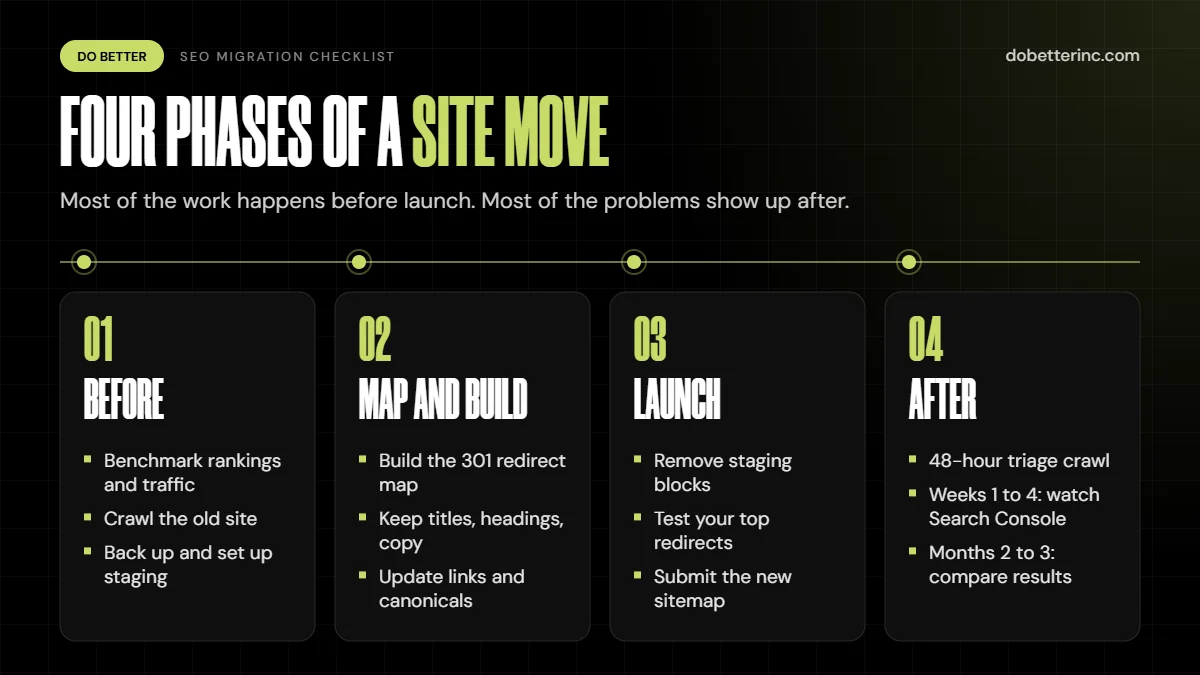
Phase 1: Before you change anything
A good SEO migration plan, meaning your decisions on what moves, what merges and what goes, is mostly finished before the first page is built.
Benchmark your rankings and traffic
You cannot judge a migration without a before picture. Export these while the old site is still live:
- Organic landing pages and clicks from Google Search Console (a full 16 months if available)
- Organic sessions and conversions from your analytics
- Your top ranking keywords and the pages they point to
- Your current indexed page count
Save them somewhere that does not depend on the old site existing. If the migration also changes your analytics setup, note that now, because a traffic dip that is really a tracking gap will send you chasing the wrong problem. If you need reliable tracking set up first, see our analytics and reporting service.
Crawl and inventory the old site
Run a full crawl of the live site with a tool like Screaming Frog or Sitebulb. You want every URL, its status code, title, meta description, H1, canonical, word count and inbound internal links, in one spreadsheet. This is the master list for everything that follows.
Then add what a crawl cannot see: URLs that earn backlinks (from Ahrefs or a similar tool) and URLs that get clicks in Search Console. Pages that bring in links or traffic are the ones you protect first. A page with no links, no traffic and no purpose is a candidate for removal, and removal is a legitimate choice if you handle it deliberately.
Decide what stays, merges or goes
Go through the inventory page by page and label each one:
- Keep: same content, new URL or same URL.
- Merge: two weak pages become one strong page, and the old ones redirect to it.
- Remove: no equivalent on the new site. These need a considered redirect or a 404 or 410, not a blanket send to the home page.
Google’s guidance is specific here: do not point lots of old URLs at one unrelated page such as the new home page. If content was consolidated, redirecting to the single new page that replaced it is fine (Google Search Central).
Back up and set up staging
Take a full backup of files and database before anything moves. Then build the new site on a staging environment that search engines cannot index. Password protection is the safest option. If you rely on noindex or a robots.txt block instead, write down exactly what you set, because you will need to remove it at launch. Google specifically asks you to prepare the production robots.txt and a list of URLs whose noindex rules come off on launch day, and to remove any blocks that existed only for the migration (Google Search Central).
Pick the launch date
Choose a low-traffic window and avoid launching alongside a big campaign. Check that your server can handle a spike: Google notes that Googlebot crawl load on the new site tends to rise after a migration, so capacity should be confirmed in advance. And if this is a small or medium site, move all of it at once. Google advises phased moves mainly for large sites that can move one section at a time.
Phase 2: Map and build
Build the 301 redirect map
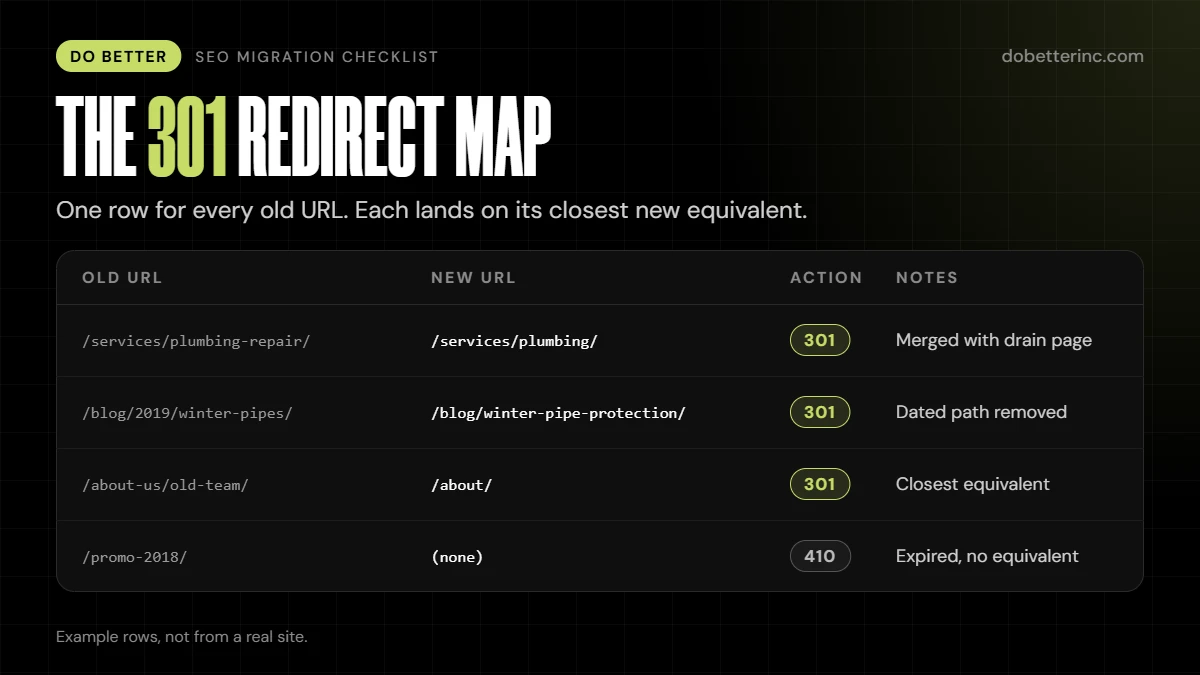
This is the single most important document in the project. It is a spreadsheet with one row for every old URL and the exact new URL it should land on.
| Old URL | New URL | Action | Notes |
|---|---|---|---|
| /services/plumbing-repair/ | /services/plumbing/ | 301 | Merged with drain page |
| /blog/2019/winter-pipes/ | /blog/winter-pipe-protection/ | 301 | Dated path removed |
| /about-us/old-team/ | /about/ | 301 | Closest equivalent |
| /promo-2018/ | (none) | 410 | Expired, no equivalent |
(These are example rows, not from a real site.)
Rules to follow:
- Use permanent server-side redirects. Google recommends 301 or 308 (Google Search Central). Avoid JavaScript redirects and meta refresh for this.
- Point each old URL straight at its final destination. Chains waste crawl effort. Google says to keep any chain short, ideally no more than three hops.
- Match like for like. The old page about drain cleaning goes to the new drain cleaning page. If there is no equivalent, pick the closest parent category, not the home page.
- Handle the oddballs. Trailing slashes, uppercase paths, URLs with parameters, old PDF links and image URLs that earn links all deserve rows too.
- Test the map on staging with a crawl in list mode before it goes anywhere near production.
Keep the on-page signals
Compare the staging site to the old site, template by template. For each key page, check that these carried over unless you changed them on purpose: title tag, meta description, H1 and heading structure, body copy, image alt text, internal links, and structured data. If a page ranked for a phrase, the phrase should still be on it. A redesign that swaps a 700-word service page for a hero image and three bullets is a content cut, even if nobody called it one.
Update internal links, canonicals and metadata
Internal links should point at the final new URLs directly, not at old URLs that then redirect. Google says to update your own and high-traffic external links so people are not relying on redirects (Google Search Central). Canonical tags and Open Graph URLs should reference the new addresses. On staging, canonicals often still say the old domain or the staging domain, and that mistake is easy to ship.
Schema, robots.txt and sitemaps
- Structured data: Re-test the types you already use (Organization, LocalBusiness, Product, FAQ, Article) on the new templates. Make sure URLs inside the markup are the new ones.
- robots.txt: Prepare the production version. If a site has no robots.txt, the correct response is a proper 404, not an error page or an empty file.
- XML sitemaps: Build a sitemap of the new URLs. Keep a saved copy of the old URL list too. Google suggests keeping an old-URL sitemap for monitoring, because you can watch it shrink in Search Console as the new one grows (Google Search Central).
Phase 3: Launch day
Have this site migration checklist open on the day, and have two people on it, one doing and one checking.
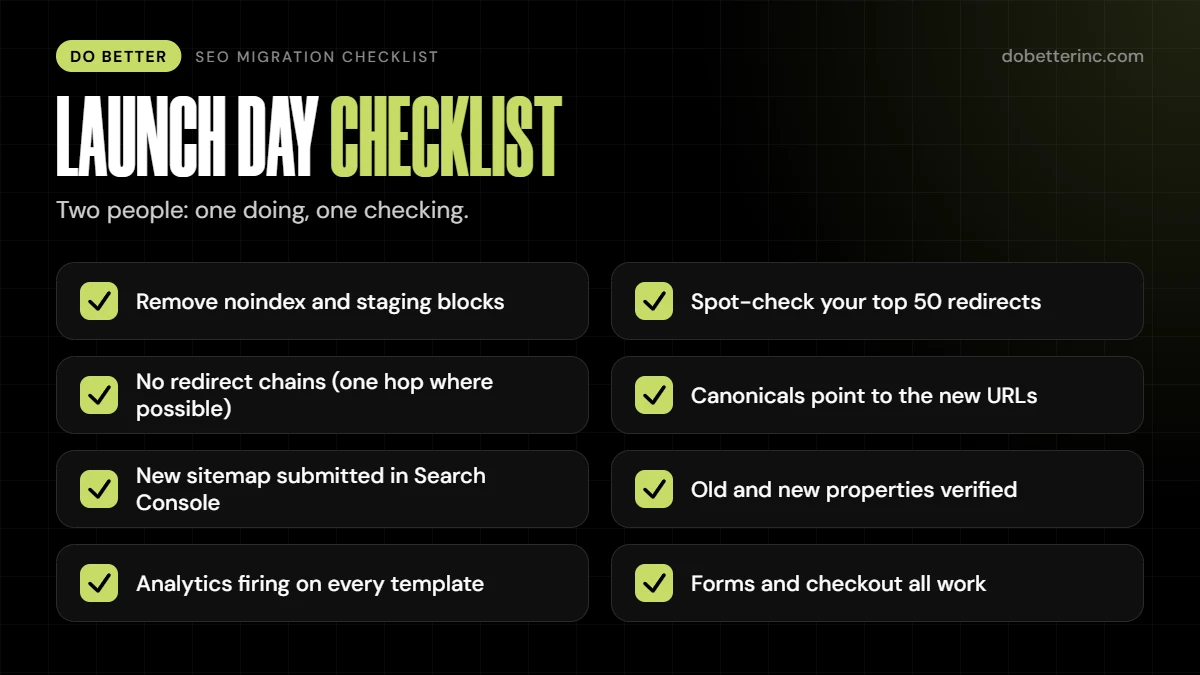
| Check | What to look for |
|---|---|
| Remove staging blocks | No noindex tags, no password wall, no Disallow: / in robots.txt |
| Live redirects | Spot-check at least your top 50 URLs by traffic and links; confirm 301 status and correct target |
| No redirect chains | Old URL reaches its destination in one hop where possible |
| Canonicals and hreflang | Self-referencing and pointing at the new URLs |
| Sitemap | New sitemap submitted in Search Console, old URLs removed from active sitemaps |
| Search Console | Both old and new properties verified, all variants |
| Analytics | Tracking tag firing on every template, goals and conversions still counting |
| Forms and checkout | Contact forms, quote requests, carts and payment all work |
| HTTPS | One version of the site resolves, no mixed content warnings |
| Server | Response times normal, no 5xx errors under crawl load |
| 404 page | Custom 404 returns a real 404 status |
Search Console and the Change of Address tool
If you are only changing paths on the same domain, redirects and updated sitemaps are the job. If you are changing domains, use the Change of Address tool as well. Some specifics from Google’s documentation (Google Search Console Help):
- Set up 301 redirects first, starting with the old homepage and ideally your key pages.
- Verify both old and new properties with the same Google account.
- The tool works at domain level. It does not move subdomains, so verify and submit each variant, such as www and non-www.
- The effects of the tool last 180 days. Keep redirects for at least that long, and longer if the old URLs still get Google traffic.
- It does not apply to HTTP to HTTPS, www to non-www on the same domain, or host and CDN changes that leave user-visible URLs the same.
Google’s site move guide goes further and says to keep redirects for at least a year and to think about keeping them indefinitely. We agree. Redirects cost almost nothing to keep.
Also keep the old domain registered. Google advises holding it for at least a year so nobody else can acquire it and misuse the links that still point there.
Phase 4: After launch
The first 48 hours
This is triage. Crawl the live site again and compare it against your inventory. Look for 404s, redirect chains, redirect loops, pages that lost titles or headings, and any page returning something other than 200 when it should. Check Search Console for crawl errors and keep an eye on server logs for Googlebot hitting errors.
Request indexing for the new home page and a few key pages if you like. What matters most is that Google can crawl everything cleanly.
Weeks one to four
Watch these in Search Console, which Google lays out in its own monitoring advice:
- Sitemaps report: The old-URL sitemap should decline as the new one grows. Redirect warnings on the old sitemap are expected.
- Indexing reports: Look for drops on the old site, gains on the new, and unexpected errors.
- Performance report: New-site impressions and clicks should rise as old ones fall.
- Server logs: Confirm Googlebot is crawling and not hitting error codes.
- Analytics: Check that organic traffic is shifting from old to new URLs and not just disappearing.
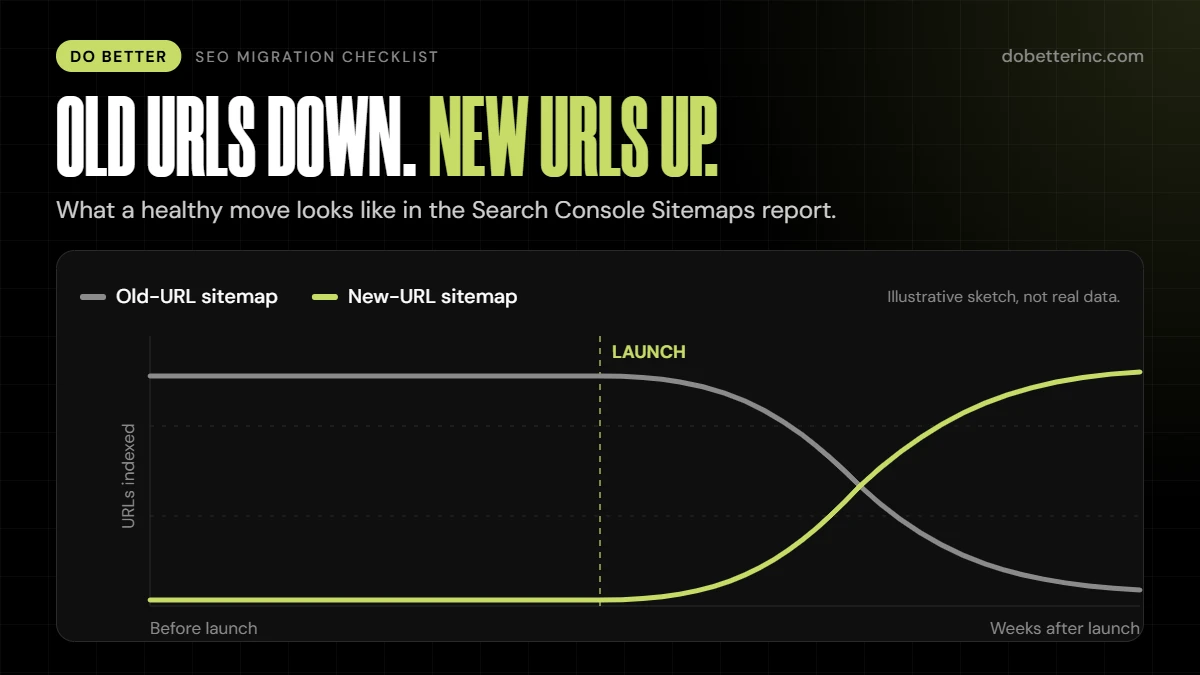
A dip in this window is normal. Google itself says visibility can fluctuate during the move. What you are watching for is a dip that does not recover, or a dip concentrated in one section, which usually points to a specific broken redirect pattern or template problem.
Months two and three
Run another full crawl. Compare rankings and landing-page clicks against your pre-migration benchmarks, page by page, not just in total. Update external links you control: social profiles, directories, email signatures, Google Business Profile, and partner sites. If you own relationships with sites that link to you, ask the highest-value ones to update their links to the new URL. If the business has a Google Business Profile, update its website URL too (our Google Business Profile guide covers optimizing it).
For a bigger-picture review of what the site is and is not capturing after the dust settles, a search performance audit is a sensible follow-up.
Platform notes: WordPress, Shopify and WooCommerce
The checklist is the same on every platform. The traps are not.
WordPress
- The “discourage search engines” setting. In Settings, then Reading, WordPress has an option that asks search engines not to index the site. Since version 5.3 it adds a robots meta tag to the page header. WordPress notes that this only asks politely, and compliance is up to each search engine (WordPress Support). It is meant for staging. It is also the most common reason a freshly launched WordPress site is not showing up. Uncheck it on launch day and verify the tag is gone in the page source.
- Moving the database. When the domain changes, old URLs are stored all over the database, including inside serialized data. WP-CLI’s
search-replacecommand handles serialized data and has a--dry-runoption that shows what would change without saving it (WP-CLI handbook). Run the dry run first, every time, with a backup in place. - Permalinks. Check Settings, then Permalinks, on old and new. If the structure changed from
/%year%/%postname%/to/%postname%/, every post URL changed and every one needs a redirect. - Redirect plumbing. Server-level rules (Apache or Nginx) are the cleanest for large maps. A redirect plugin is fine for a few hundred rows, as long as someone owns it afterwards.
If your migration is a rebuild rather than a move, our WordPress development team can build it with the redirect map in the project plan from the start.
Shopify
Shopify has strong tools for this and several hard limits that surprise people. From Shopify’s help documentation (Shopify Help Center):
- Redirects are created in the admin under Content, then Menus, then View URL Redirects. You can bulk import them from a CSV file.
- You can only redirect from a URL that returns an error such as a 404. If the old URL still loads a valid page, the redirect will not work.
- Some paths cannot be redirected, including those starting with
/apps,/cart,/ordersand/shop, and the fixed paths/products,/collectionsand/collections/all. - The limit is 100,000 redirects per store, or 20,000,000 on Shopify Plus.
- Browsers and search engines may keep following a 301 after you delete it, so treat deletions carefully.
Shopify also warns that its URL structure probably differs from your old platform, with the example of a policy page moving from a /policies/ path to a /pages/ path, and recommends redirecting your most-visited old pages and testing each old URL after launch (Shopify Help Center). Shopify creates a sitemap.xml at your domain root automatically, and you can submit that to Search Console.
If you are moving to Shopify, our Shopify development team can build the store, and the redirect CSV should be ready well before launch.
WooCommerce
WooCommerce combines the WordPress issues above with an ecommerce twist: product and category URLs. Check the product and category permalink settings on both the old and new stores, because a change there rewrites thousands of URLs at once. Products that are discontinued need a deliberate choice, such as redirecting to the closest category or successor product, rather than a sea of 404s. Confirm that product schema, prices and stock status come across correctly on the new templates, and that cart and checkout pages work before anyone announces the launch.
For stores moving to or from WooCommerce, our WooCommerce development and ecommerce website development services cover the build, and the SEO map should be planned alongside it.
Mistakes that cost rankings
A short list of things we would check before any launch sign-off:
- Redirecting everything to the home page. It is fast and it is wrong. Google advises against it.
- Launching with noindex still on. Check page source on the live site, not just the setting you remember changing.
- Cutting content during the redesign. Compare word counts for your top pages before and after.
- Forgetting the old domain’s Search Console property. You lose the clearest view of how the old URLs are being handled.
- Treating launch as the finish line. Most of the problems that matter show up in the weeks after.
If you are weighing whether to bring in outside help, our piece on how to choose the right SEO agency lists the questions worth asking, and our note on why web development and SEO work better together explains why migrations go better when the same team owns both halves.
Traffic dropped after migration: what to check
If organic traffic falls after launch, work through this table in order. Most fixes are in the top half.
| Symptom | Likely cause | Fix |
|---|---|---|
| Nothing indexed on the new site | Noindex tag or robots.txt block still live | Remove it, resubmit sitemap |
| Old URLs showing 404 | Redirect missing from the map | Add the redirect, check logs for similar patterns |
| Old URLs land on the home page | Catch-all redirect rule | Replace with page-level redirects |
| Rankings fell for specific pages | Content, title or heading changed in the redesign | Restore the lost copy and signals |
| Both versions appear in results | Canonicals or internal links point at old URLs | Update them to the new URLs |
| Traffic “dropped” but leads did not | Analytics tag missing on new templates | Fix tracking, then re-compare |
| Crawl errors rising | Server slow or returning 5xx under crawl load | Fix hosting capacity and response times |
| Slow decline across weeks | Normal fluctuation, or backlinks not consolidated | Keep monitoring, update high-value links |
Remember that some movement is expected. Google says rankings and visibility can fluctuate during the move before settling. The test is whether the trend recovers once the redirects, indexing and tracking are confirmed clean.
FAQ
How long does SEO for a site migration take?
The project itself depends on your site size and how much is changing. Once you launch, Google says most pages on small to medium sites typically move within a few weeks, and larger sites take longer. Plan to monitor for at least 90 days, and keep redirects in place for at least a year.
How do I migrate a website without hurting SEO?
Crawl the old site, map every URL to its closest new equivalent with a 301 redirect, keep your titles, headings and key content intact, remove staging blocks at launch, submit a new sitemap, and monitor Search Console afterwards. Change one major thing at a time where you can.
How many hours should I estimate for an SEO site migration?
There is no honest flat number. The hours depend on how many URLs need individual redirect decisions, how much content is changing, whether the platform or domain is changing, and how much QA and monitoring is included. Get an estimate that starts from a crawl of your site, not from a generic quote.
Does changing my website host affect SEO?
If the move does not change any user-visible URLs, Google says the Change of Address tool does not cover it. The risk is practical: downtime, slow responses or server errors while Googlebot is crawling. Test the new server under load, keep the old host running until DNS has fully switched, and watch for 5xx errors afterwards.
How do I do a site migration?
Benchmark rankings, crawl the old site, decide what stays, merges or goes, build the redirect map, set up staging, test, launch, then monitor.
How do I update page URLs after a site migration?
Update internal links, canonical tags, sitemaps and structured data to the new URLs, keep 301 redirects from the old ones, and then update external profiles and partner links you control. On WordPress, a database search and replace with a dry run first is the safe way to update stored URLs.
How much does an SEO migration cost?
It varies with the number of URLs, platform changes, content work and how much testing and monitoring is included. A small site with unchanged URLs is very different from a large store changing platform and domain. Scoping from a crawl keeps the quote tied to your real site.
Need a hand with the move?
If you are planning a redesign, a platform change or a new domain and you would rather not find out what broke after launch, we can help plan the migration before the build starts. Do Better handles web development, website design and SEO under one roof, so we can plan the redirect map alongside the new site. You can see the kind of work we do in our portfolio, or contact us with your current site and what you are planning.